Adding New Households
This guide covers how to add new households to the HouMeerOver system by creating batches and uploading CSV files with address data.
Creating a Batch and Uploading Data
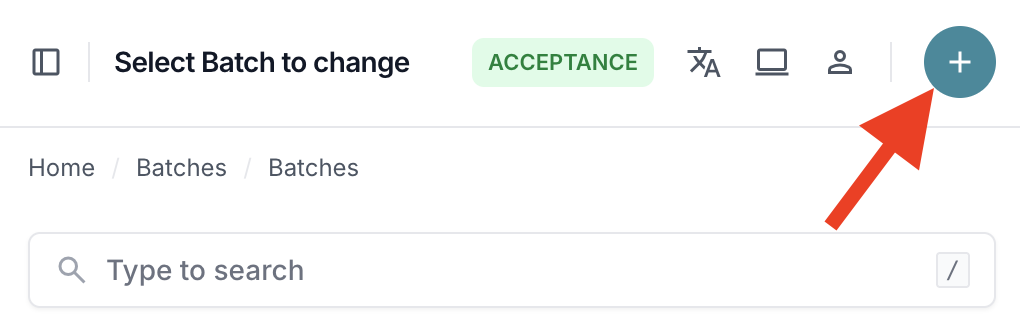
Step 1: Create New Batch
- Log into the HouMeerOver administration interface
- Navigate to Batches in the main menu
- Click Add Batch to create a new batch
Step 2: Configure Batch Details
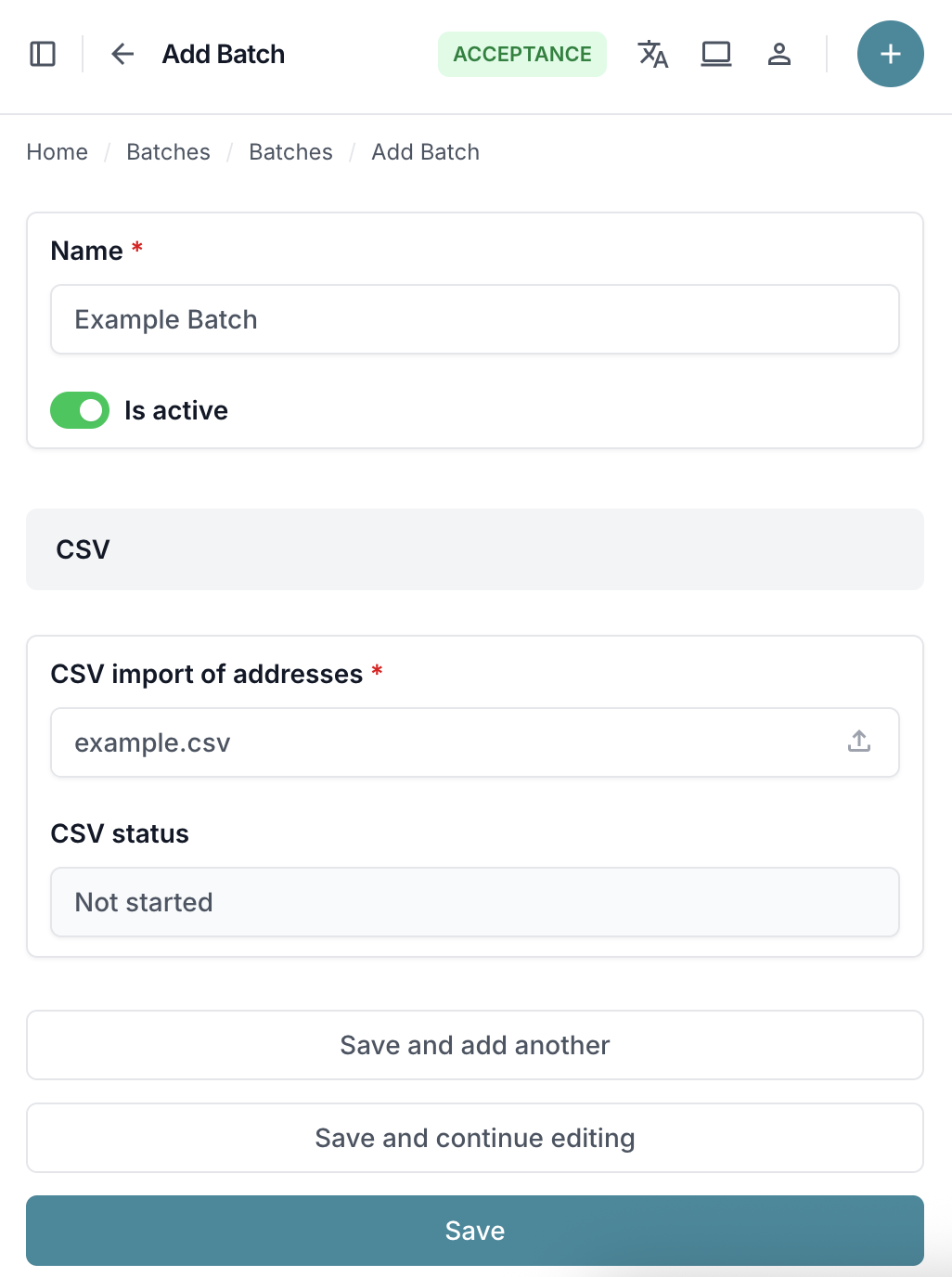
Fill in the required information:
- Name: Choose a unique, descriptive name for your batch (max 30 characters)
- Municipality: This is automatically set to your municipality
- Is active: Keep this checked to enable the batch for processing
Naming Guidelines:
- Use descriptive names like "Q4_2024_EnergyGrant" or "Pilot_Neighborhood_A"
- Include dates or project phases for easy identification
CSV File Requirements
Before creating your batch, prepare a CSV file with household address data.
Your CSV file must include these columns with exact Dutch header names:
postcode,huisnummer,huisletter,toevoeging
1234AB,1,,
1234AB,2,A,
1234CD,15,,bis
Column Specifications:
- postcode: Dutch postal code (format: 1234AB - 4 digits followed by 2 letters)
- huisnummer: House number (integer, 1-99999)
- huisletter: House letter (optional, max 2 characters, can be empty)
- toevoeging: Addition to house number (optional, max 8 characters, can be empty)
CSV Format Guidelines
Required Format: - Include header row with exact Dutch column names - UTF-8 encoding recommended - Separator is automatically detected by the system
Valid Examples:
postcode,huisnummer,huisletter,toevoeging
1011AA,123,,
1011AA,123,A,
1011AA,123,,bis
1011AA,123,B,1
Invalid Examples:
# Wrong column names (English)
postal_code,house_number,house_letter,house_number_addition

# Wrong Dutch column names
postcode,nummer,letter,toevoegsel

# Missing required columns
postcode,huisnummer
Step 3: Upload CSV File and Save Batch
To save the batch, you must upload a CSV file with household data:
- In the CSV section, click Choose File next to "CSV import of addresses"
- Select your prepared CSV file
- Click Save to create the batch and upload the file
- The system will automatically begin processing your file
Note: You cannot save the batch without uploading a CSV file. The CSV upload and batch creation happen together in one step.
Automatic Processing
Once you upload the CSV file and save the batch, the system automatically:
- Validates the file format and encoding
- Imports address data and creates batch items
- Generates login codes for residents
- Prepares the batch for calculations
Upload Process
The upload and processing happens automatically in the background: 5. Monitor the upload progress - the system will validate each address
Upload Validation
The system performs validation checks on your uploaded data:
Address Validation:
- Postal code format (1234AB pattern)
- House number must be positive integer
- Addresses are assumed to be valid (provided by municipalities)
Data Quality Checks:
- All required columns present
- Valid data types for each field
Handling Upload Errors
If validation fails, you'll see error messages for basic format issues.
Resolution Steps:
- Fix errors in your CSV file based on the error messages
- Re-upload the corrected file
Batch Status After Upload
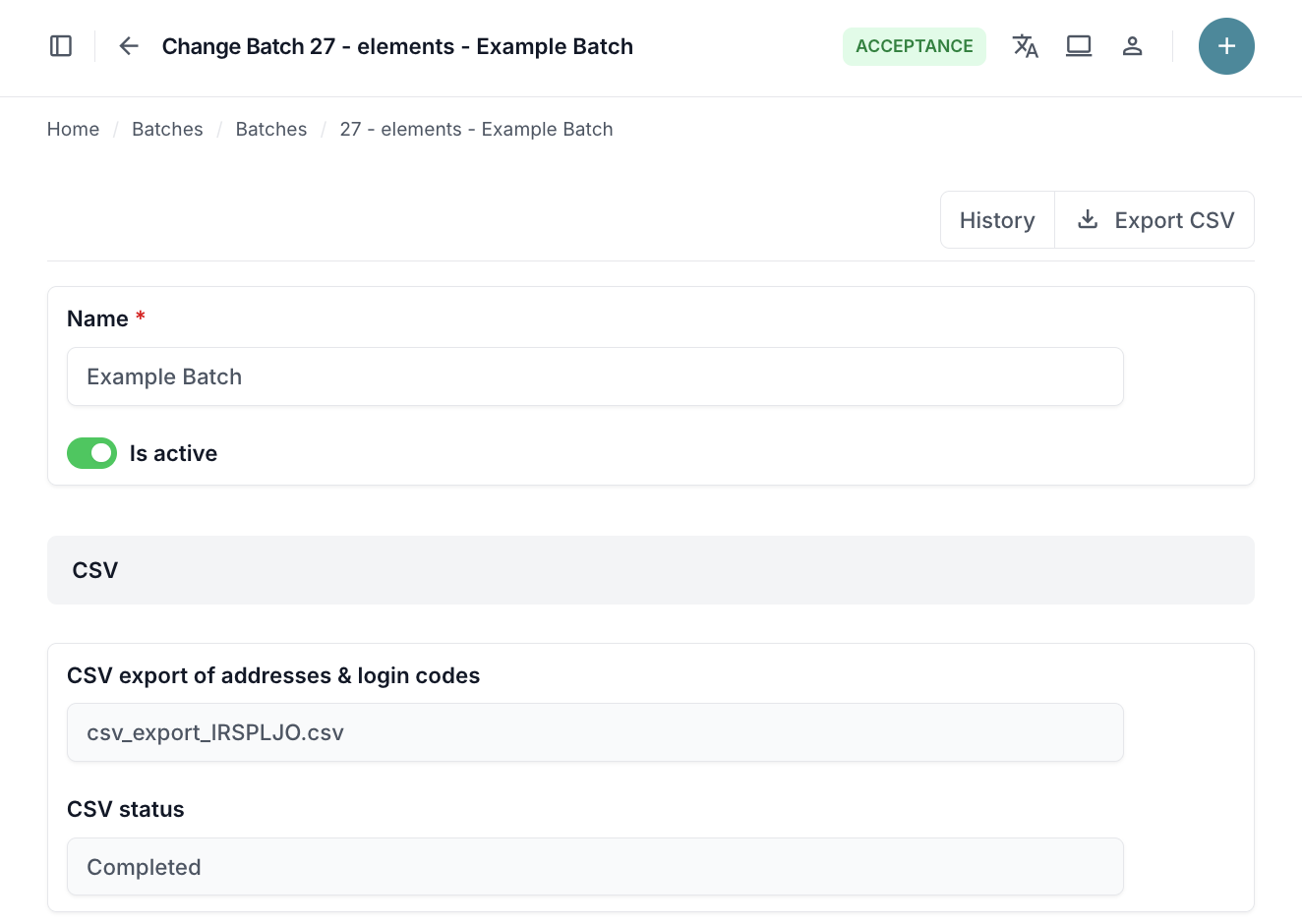
After successful upload, your batch status will progress through several stages:
- Not started → Importing (during upload)
- Importing → Imported (upload complete)
- Imported → Generating codes (creating login codes for residents)
- Generating codes → Ready for calculations
Managing Batch Items
Viewing Batch Items
- Navigate to your batch in the admin interface
- Scroll to the BatchItems section
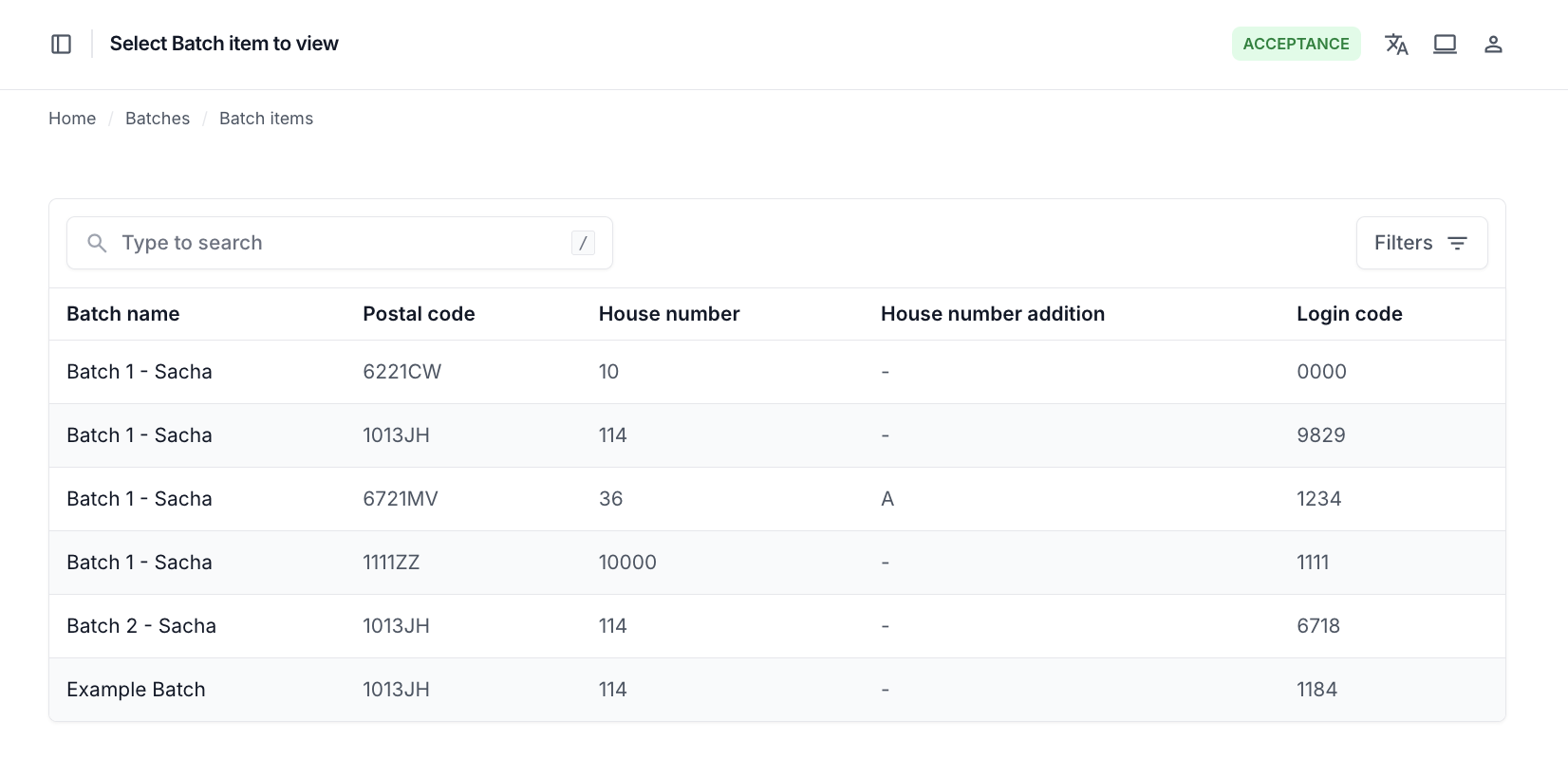
- View all addresses with their status and details
Batch Item Information
Each batch item shows:
- Address: Full postal code, house number, and addition
- Status: Processing status (imported, calculated, etc.)
- Login Code: Generated code for residents
- Calculation Results: Subsidy amount (when calculated)
Troubleshooting
Upload Issues
- Check CSV format and column names match requirements exactly
- Verify file encoding (use UTF-8)
- Ensure file is not corrupted
- Remove any duplicate addresses before uploading
Next: Learn about Downloading Results to access your calculation data.